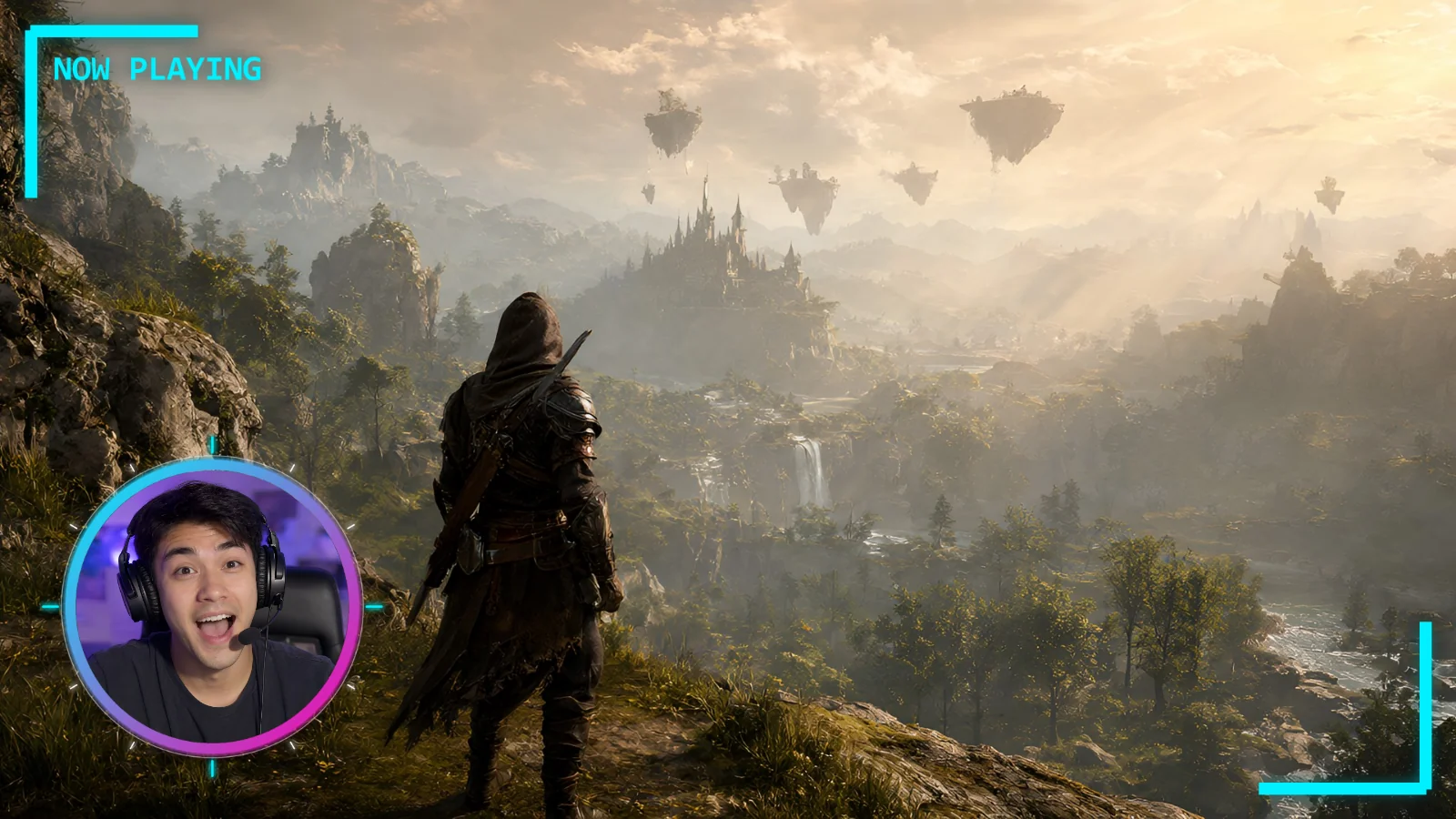
 How to add overlays and webcam frames in OBS
Add HUD frames, overlay effects and webcam frames to your stream, including a circle webcam, in the free OBS Studio.
 How to add overlays and a subscribe button in CapCut
Add overlay effects, an animated subscribe button and a Shorts frame to your videos in the free CapCut.
 How to add overlays in Premiere Pro
Stack HUD frames, overlay effects and a fading subscribe button in Premiere Pro, following Adobe's current steps.
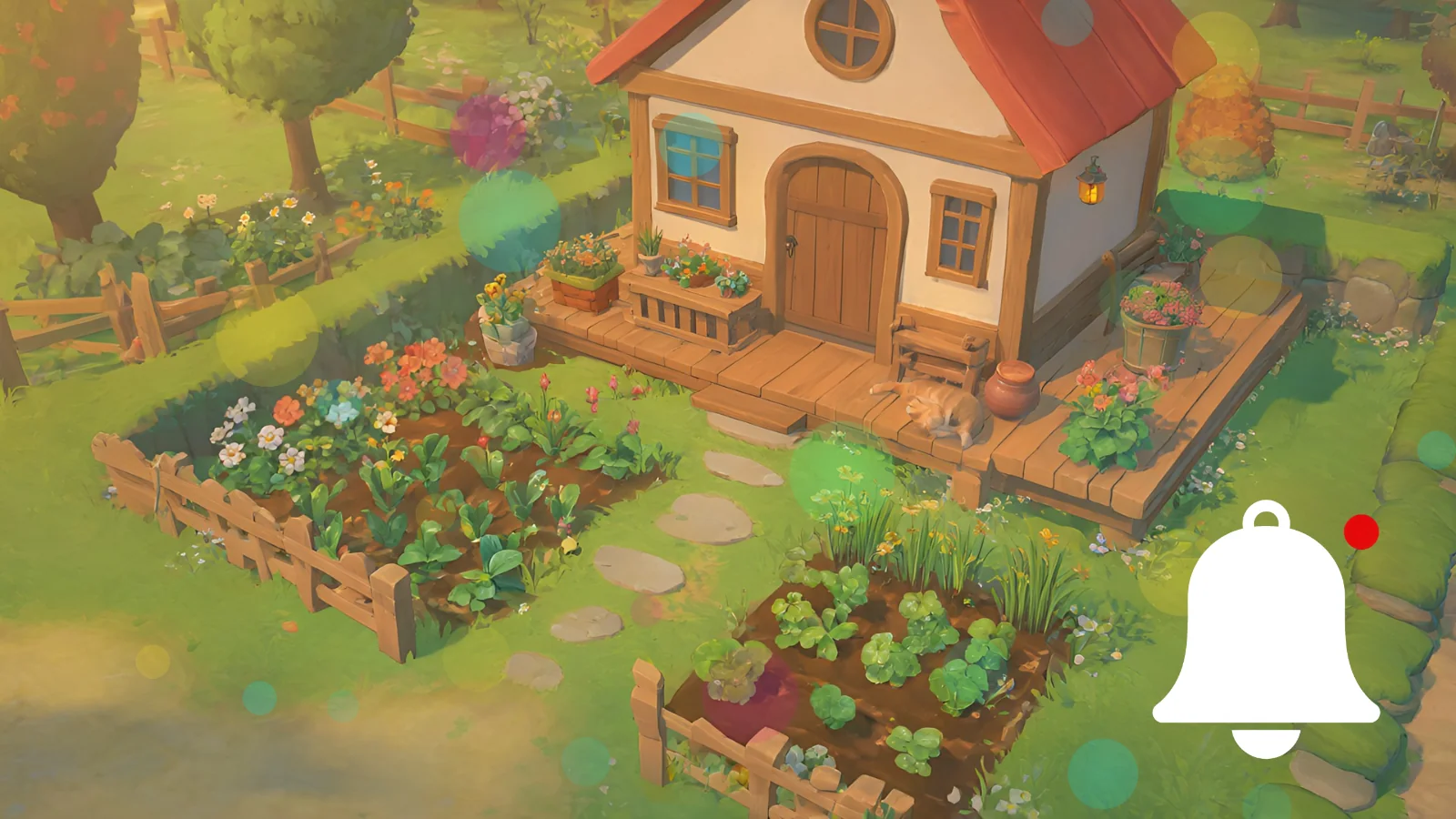 How to add overlays and a subscribe button in Filmora
Add overlay effects, an animated bell or subscribe button and a Shorts frame in Wondershare Filmora.
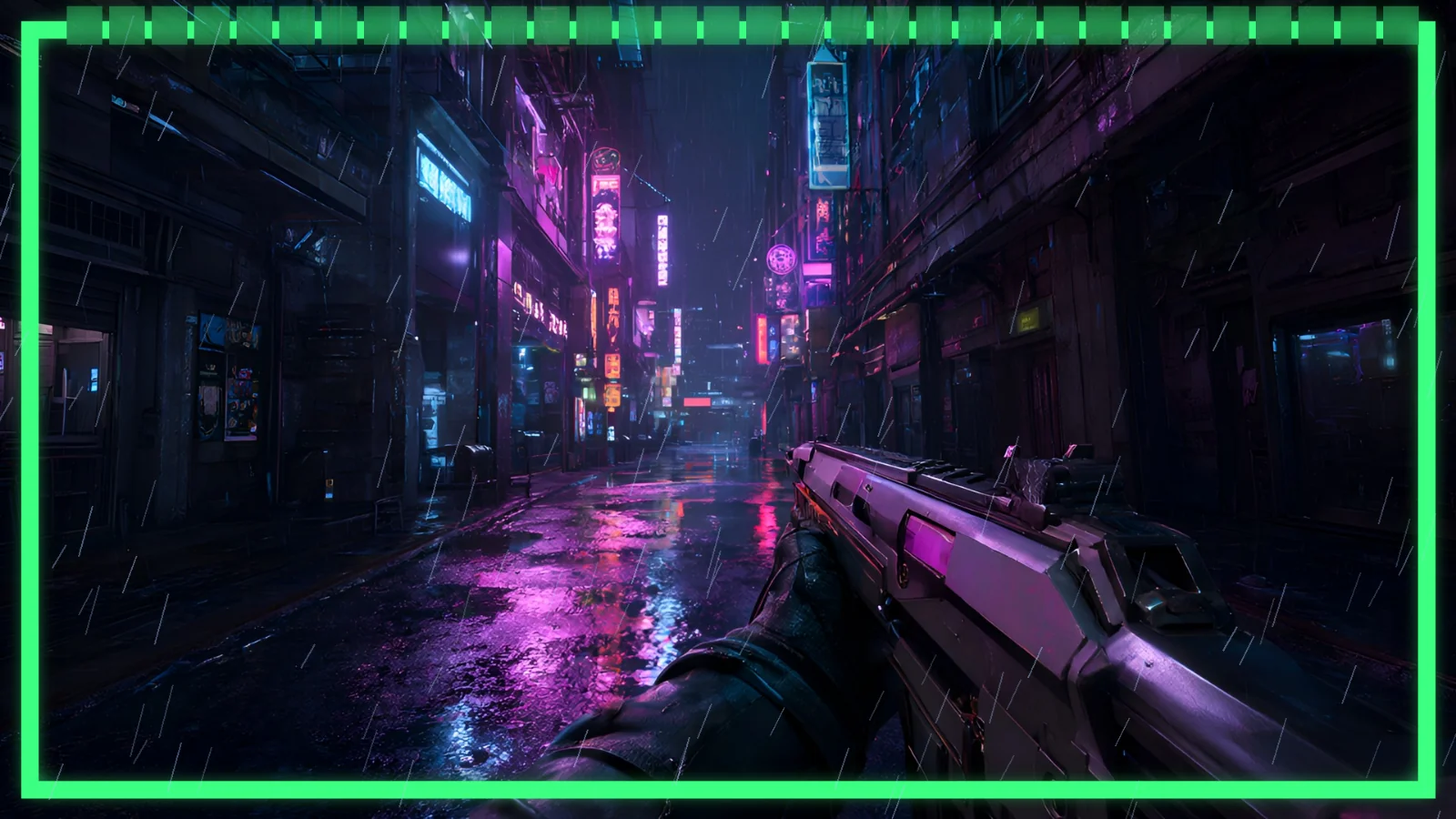 How to add overlays in DaVinci Resolve
Import, stack and soften HUD frames and overlays in the free DaVinci Resolve 21.
 How to add badges and overlays in Photopea
Put badges and overlay effects on a YouTube thumbnail in the free, browser-based Photopea.